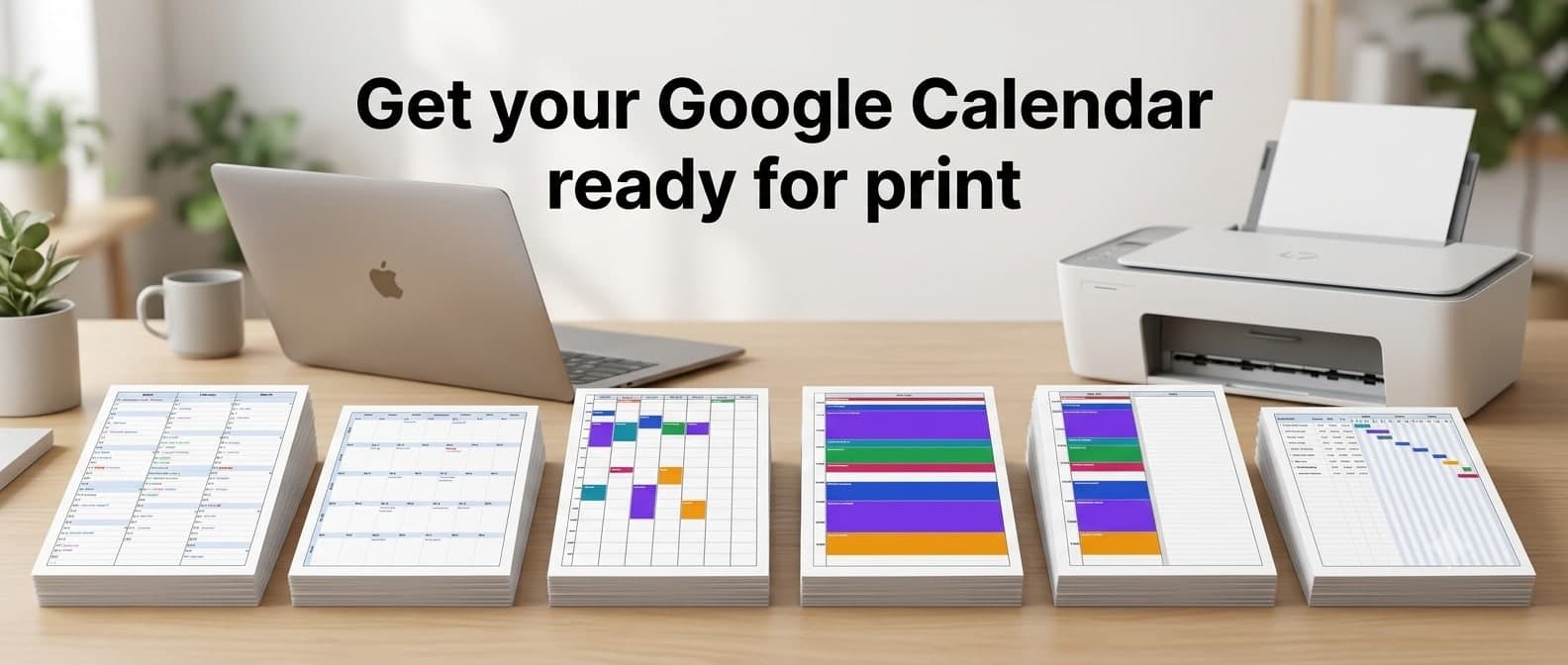
Print custom calendar views from Google Calendar
Google Calendar can print, but it prints what you are looking at, in the one style it has. No year on a page, no notes column, no project timeline, and no control over what ends up on the paper.
You can print your Google Calendar any of six ways with CalendarPrint. Connect your calendar once, pick a layout, and print or save a PDF. Your appointments stay up to date on the page by themselves — there is nothing to export again next month.
Connect your Google Calendar once
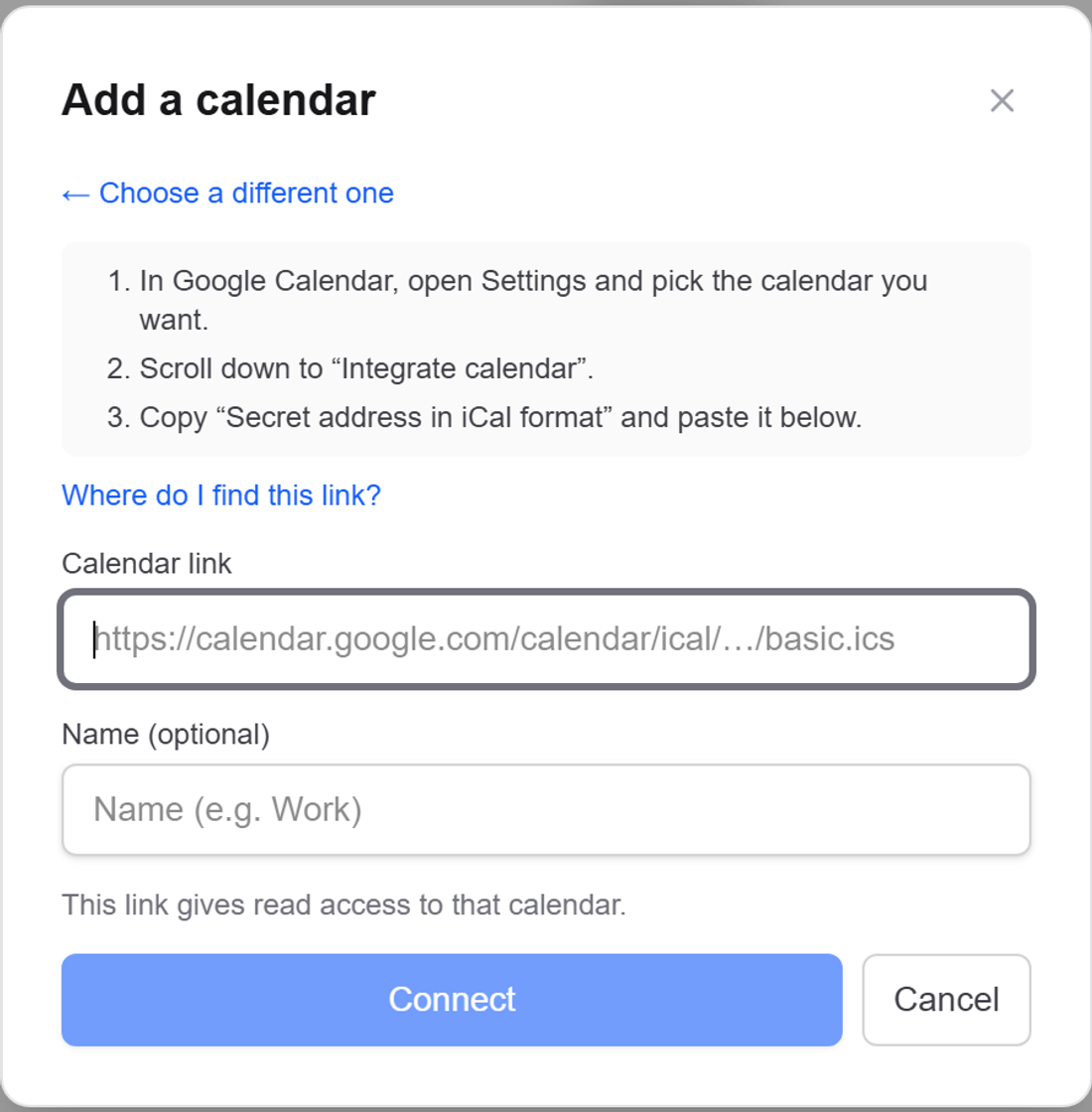
Google publishes a private link to each of your calendars, in a format CalendarPrint can read. You paste it in once and you are done.
- Open CalendarPrint and sign in.
- Connected calendars → Add calendar → Google Calendar.
- Paste your secret iCal address from Google.
How to find your secret iCal address: step-by-step guide with screenshots.
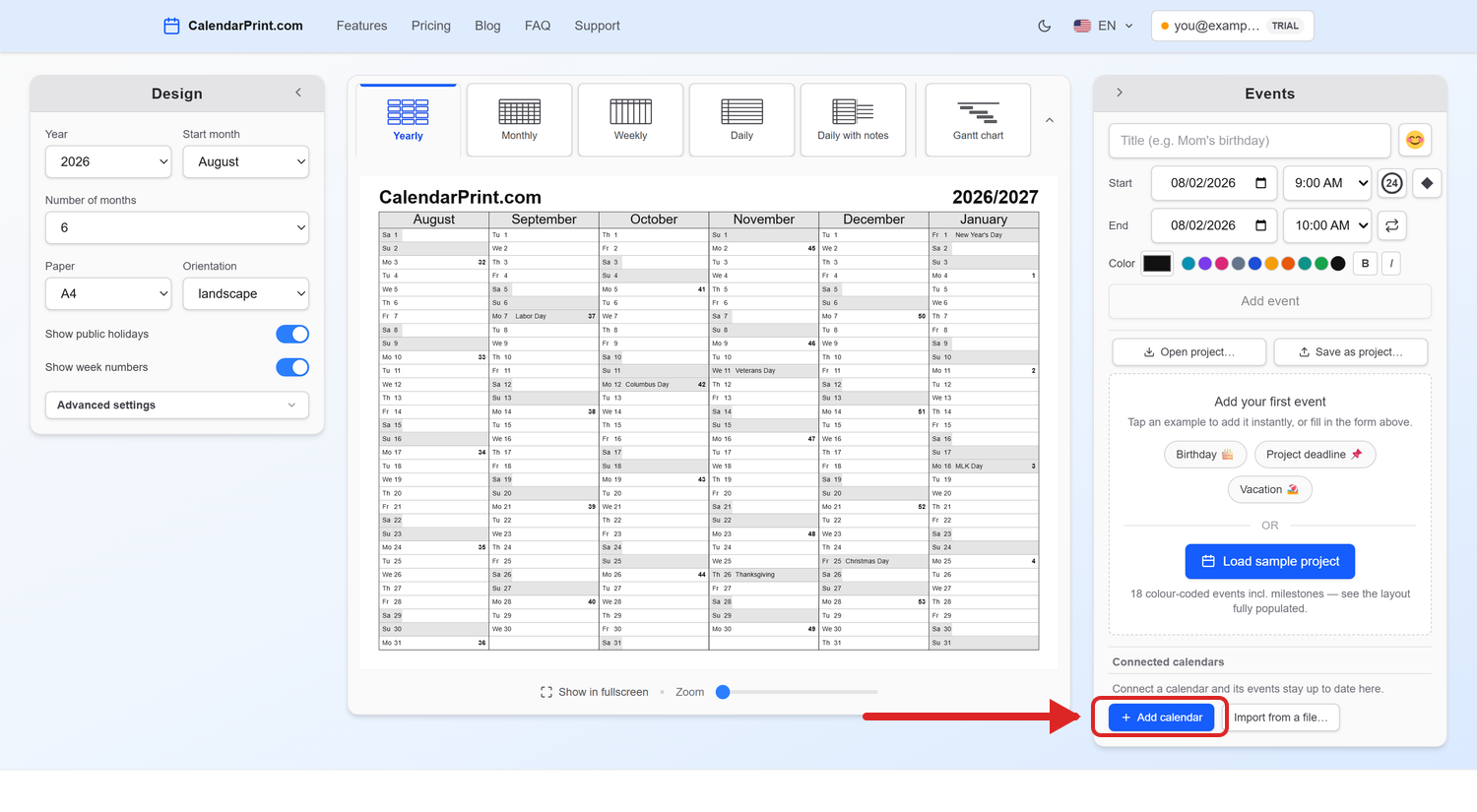
Connected calendars sits at the bottom of the Events panel, on the right:
Choose Google Calendar, and paste the address into Calendar link:
Three things worth knowing before you paste:
- It is read-only. The link lets CalendarPrint read that calendar. Nothing is ever written back, and nothing in Google changes.
- It is private, so treat it like a password. We store it encrypted and never show it again. If you ever want to cut access, reset the address in Google and the old one stops working.
- It stays current. We measured it: an event you add in Google shows up in CalendarPrint in under a minute. No re-importing, no stale copies.
This works in any browser, on any computer — there is nothing to install, and it does not matter whether you use Gmail or Google Workspace.
Six ways to print the same calendar
Everything below is the same Google calendar. Only the layout changed. Click any of them to see it full size.
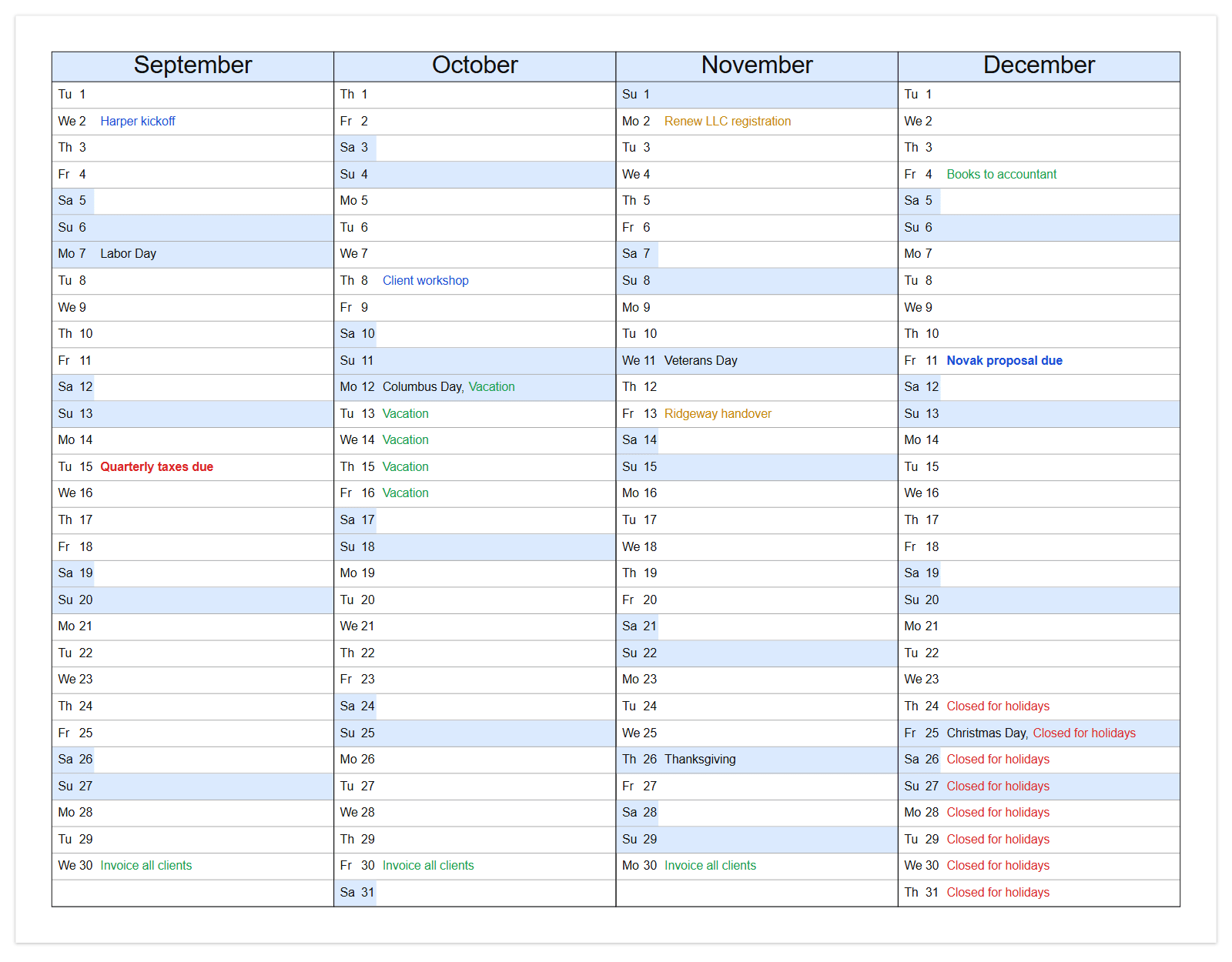
Year on a page
Every month side by side — the one people pin to the wall. Good for deadlines and vacation planning, and your country's public holidays are added automatically.
Month grid
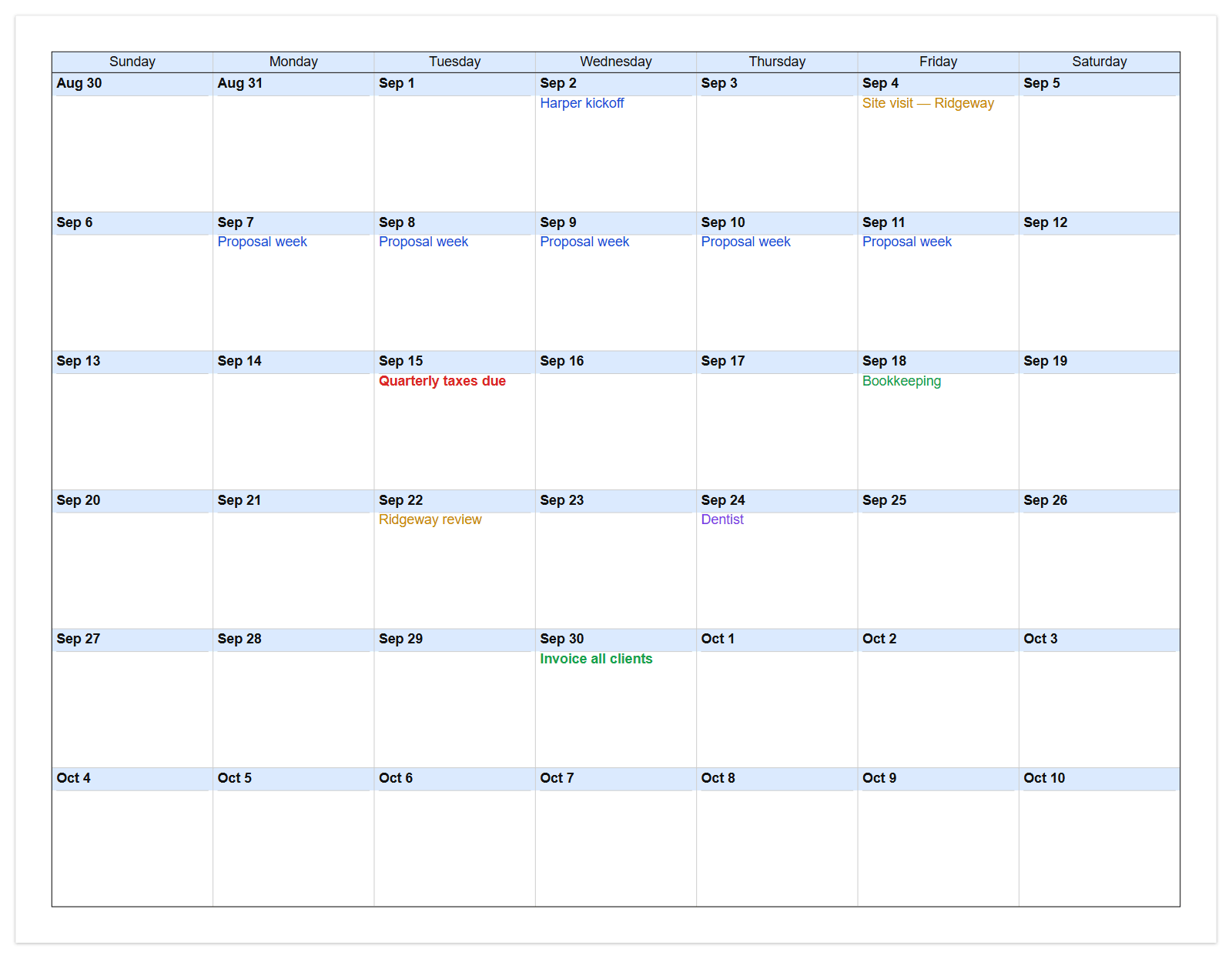
The familiar wall-calendar month, with room in each day for what is actually happening. Good for the fridge, the office wall, or handing someone this month's plan.
Week with times
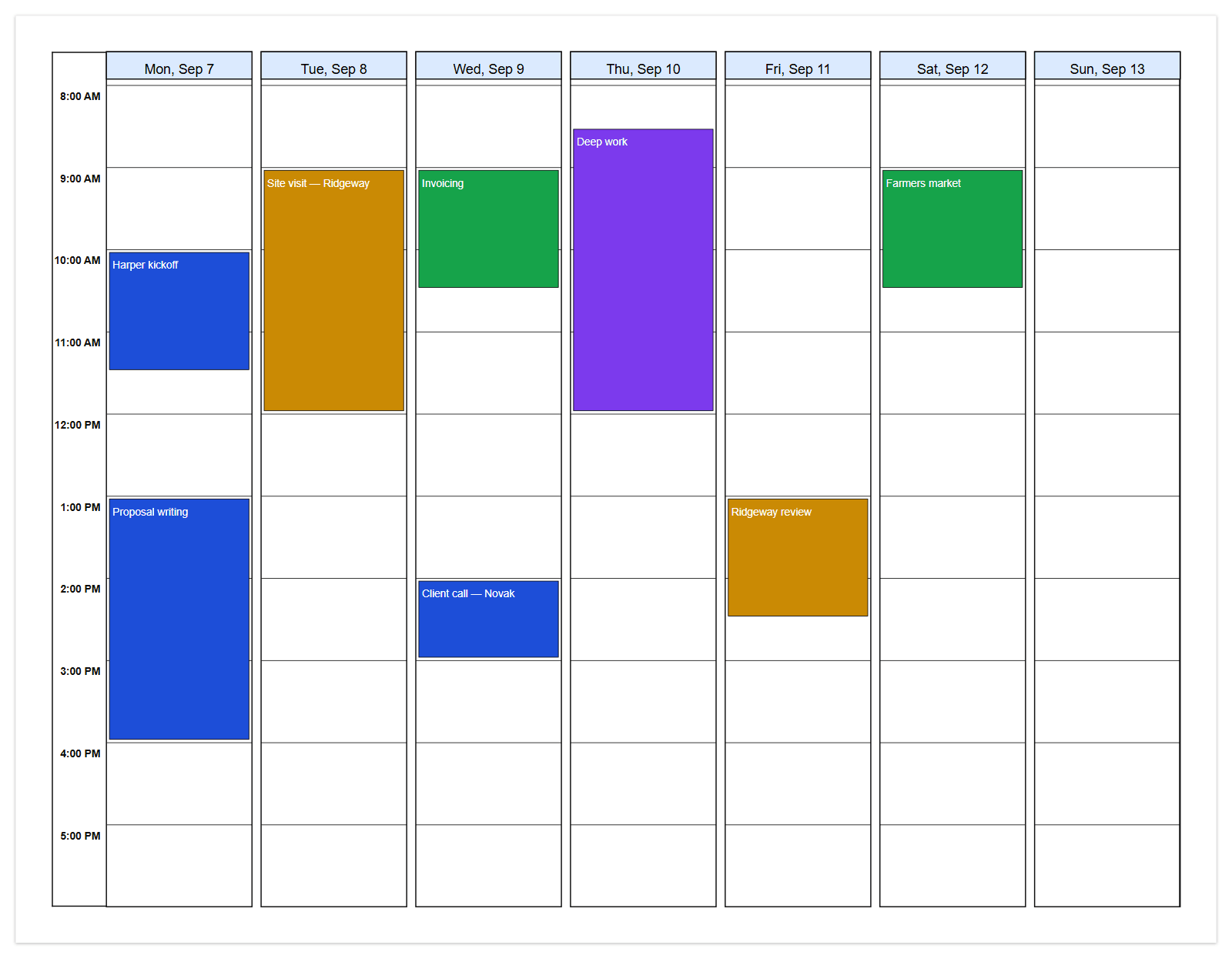
Seven days across, hours down the side, every appointment in its real slot. Set the start and end hour so you are not printing the middle of the night.
Project timeline (Gantt)
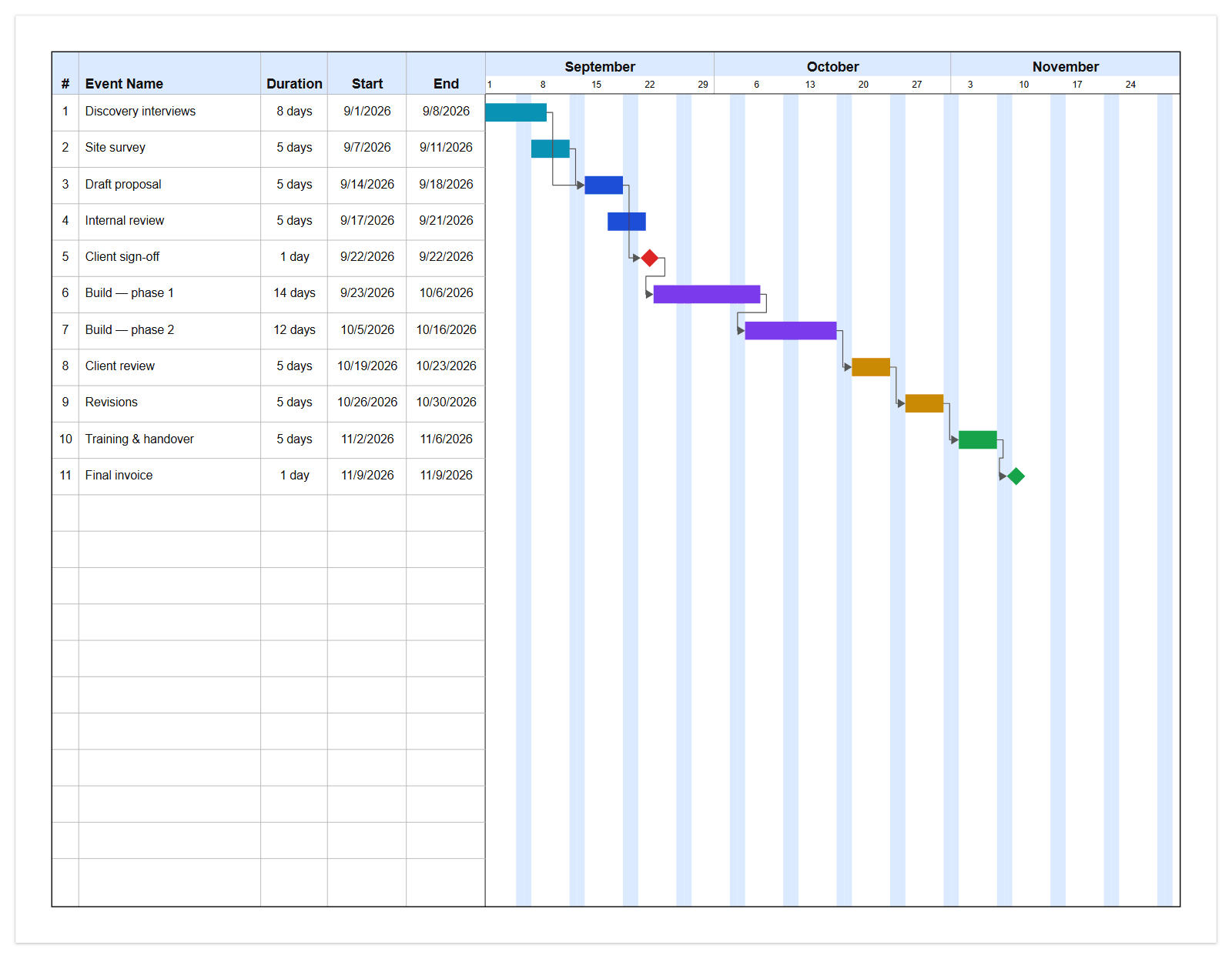
Bars for anything spanning more than a day, diamonds for milestones, arrows for what has to finish before what. This one has no equivalent in Google Calendar at all.
Single day
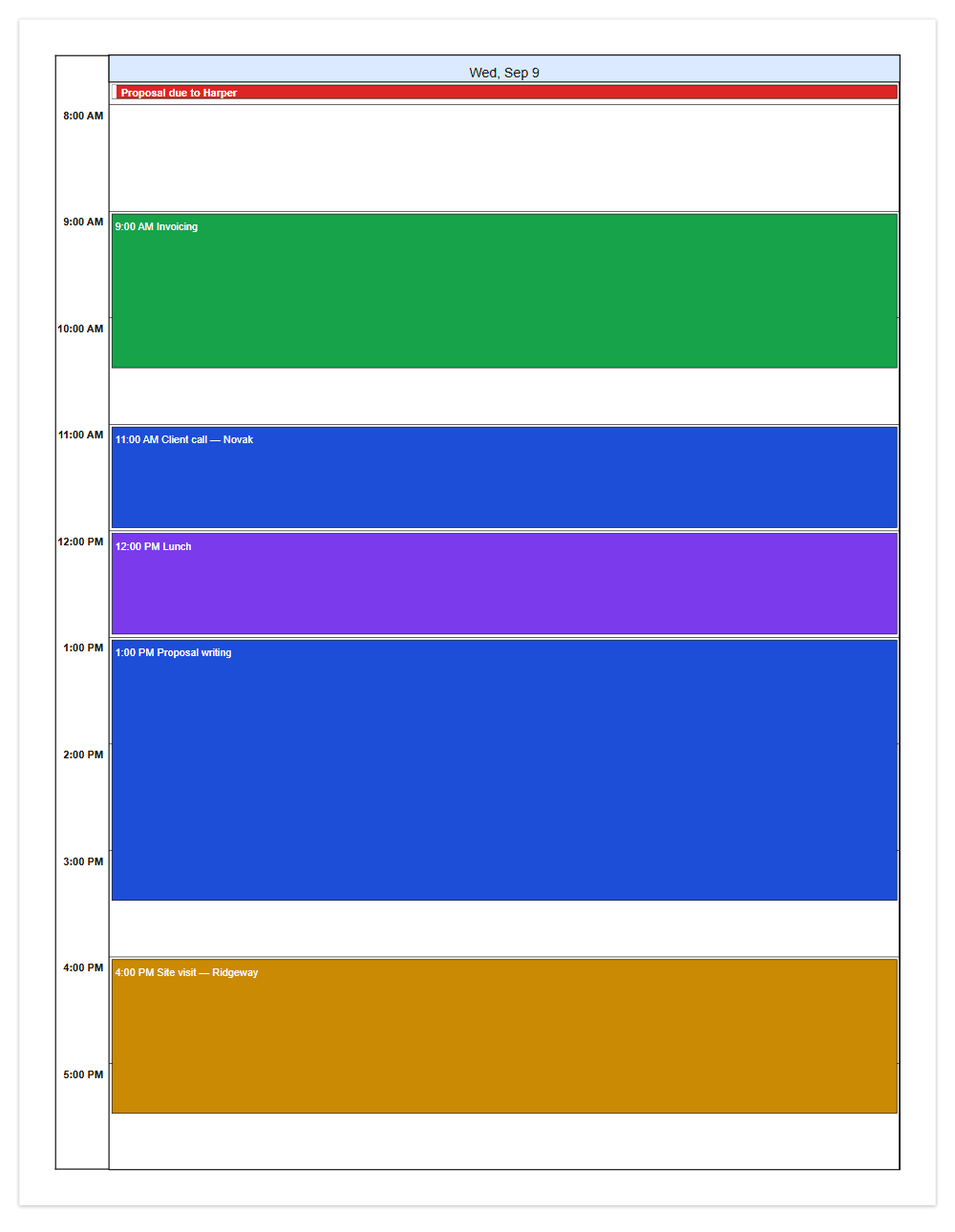
One day, hour by hour, with all-day items banded across the top. For a busy day you want in your hand rather than on your phone.
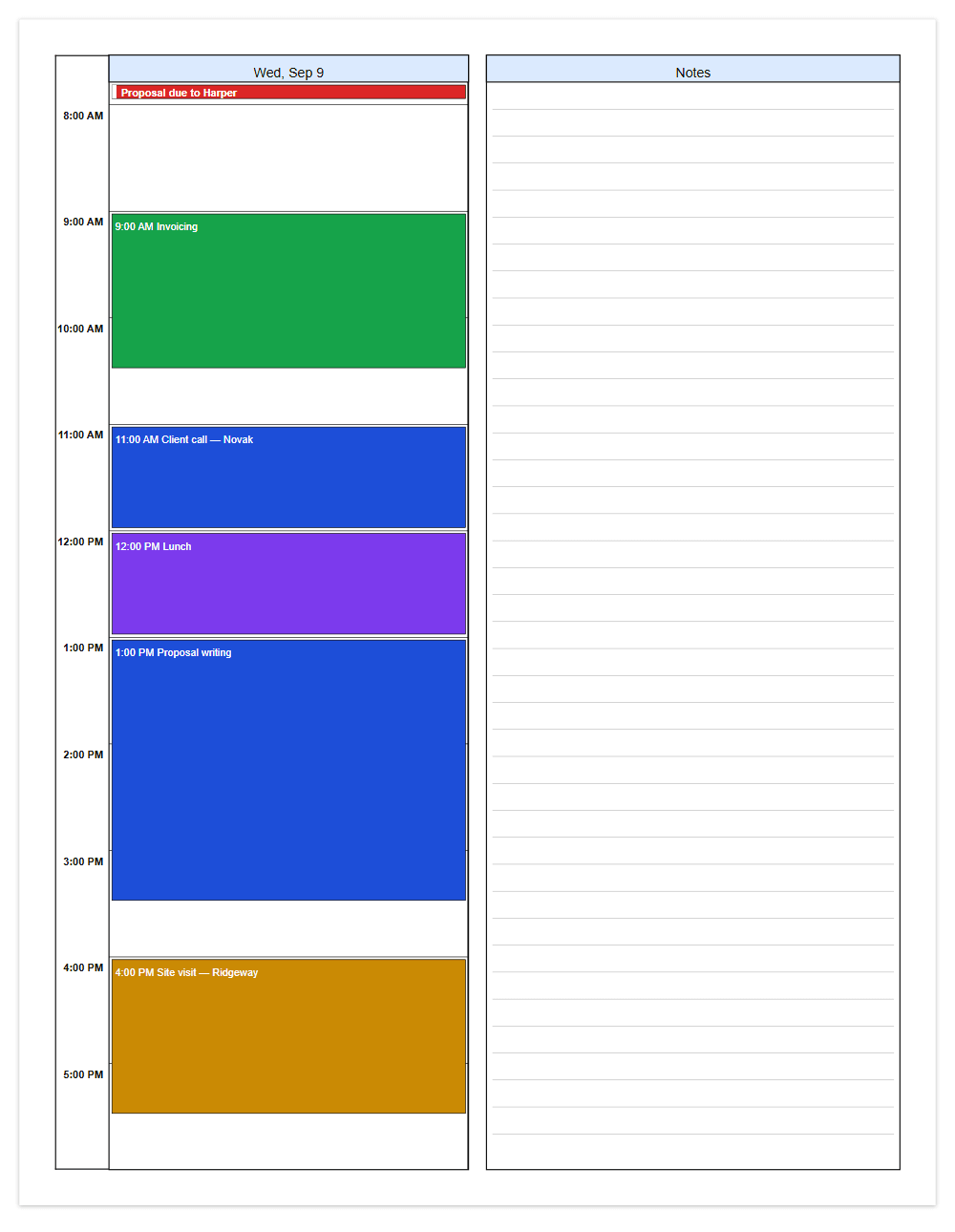
Day with a notes column
The same day, with ruled space beside it. For meetings where you take notes on paper, and site visits where the phone stays in the bag.
Then print it
Pick your paper — Letter, Tabloid, A4 or A3 — portrait or landscape, and either print straight from the browser or download a PDF to send on.
Colours, bold and italics are yours to set per event, so the print can say something your calendar does not: which client, which are billable, which are fixed.
Try it with your own calendar
- Open CalendarPrint and sign in.
- Connected calendars → Add calendar → Google Calendar.
- Paste your secret iCal address from Google.
- Pick a layout, choose your paper, and click Download PDF.
Two minutes, and the next print is one click.