How to Sync Google Calendar with a Secret iCal Address
Google Calendar hides a link that lets any other calendar app read your events, without you sharing your whole account. It's called the Secret address in iCal format, and it takes about a minute to find.
Where to find your Secret Address
- On your computer, open Google Calendar.
- In the top right, click Settings (the gear icon).
- In the left panel, under "Settings for my calendars," click the name of the calendar you want to use.
- Click Integrate calendar.
- Under "Secret address in iCal format," click Copy to copy the link.
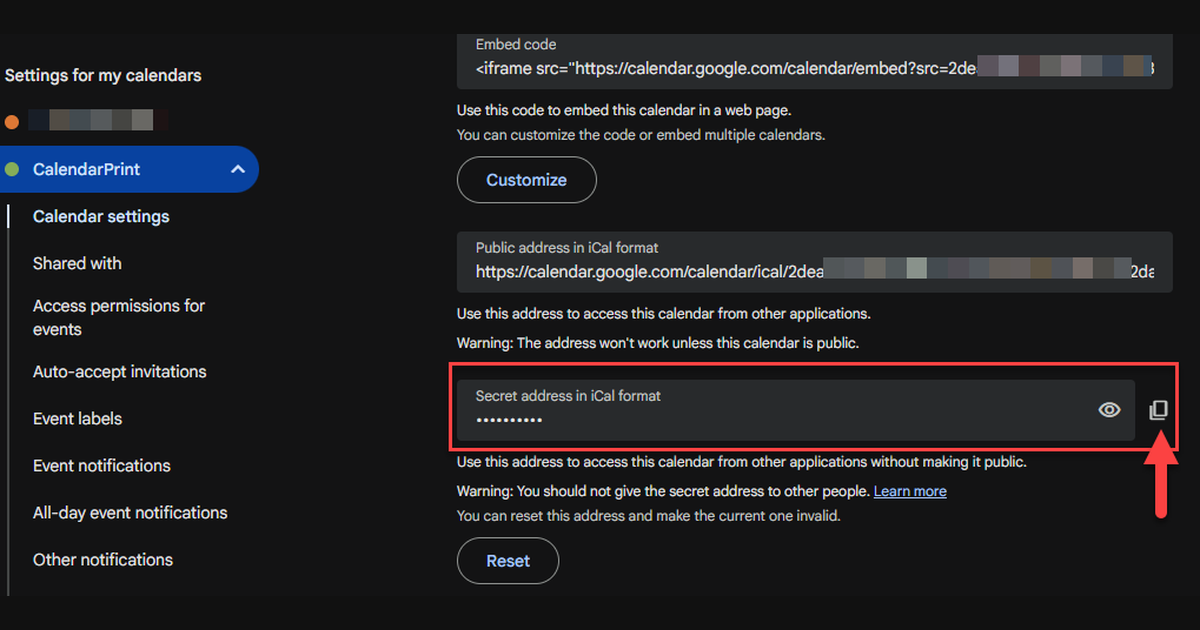
The address is hidden behind dots until you click the eye icon — you do not need to reveal it to copy it. Note the Public address in iCal format sitting directly above it: that is the one that only works if the calendar is public, and it is the easiest of the two to grab by mistake.
That link is now ready to paste into any app that can subscribe to an iCal (.ics) feed — Outlook, Apple Calendar, Thunderbird, or CalendarPrint, which turns the feed into a printable wall planner or weekly PDF.
Why this is different from just sharing your calendar
Google Calendar gives you two ways to let other software see your events, and it's easy to grab the wrong one:
| Option | What it does | Use it when |
|---|---|---|
| Public URL to this calendar | Publishes your calendar to anyone with the link, indexed and all | You genuinely want it public |
| Secret address in iCal format | A private, unguessable link that only apps you give it to can read | You want to sync into another app without making anything public |
| Share with specific people | Grants named Google accounts view or edit access inside Google Calendar itself | You're sharing with a person, not an app |
For pulling your events into a different application, the Secret Address is almost always the one you want. It's read-only, it doesn't require the other app to have a Google login, and it doesn't expose your calendar to search engines or strangers.
Keep the Secret Address secret
The name is not just a label — anyone with that link can see every event on that calendar, including titles and details, for as long as the link stays valid. Google is explicit about this: only you should know it.
A few rules worth following:
- Don't paste it into a public doc, group chat, or anywhere it could be indexed.
- If you think it's leaked, go back to Integrate calendar and click Reset. This invalidates the old link and generates a new one — but you'll need to update every app that was using the old address.
- If you actually want other people to see your calendar, use Share with specific people or a public link instead — don't hand out your Secret Address as a shortcut.
I can't find the Secret Address
If your Google account is managed by a work, school, or other organization, an admin may have restricted this feature. In that case, the "Integrate calendar" section may be missing the Secret Address entirely, and you'll need to ask your admin to enable it. Google's own help center has more on requesting help from your admin.
What to do with the link once you have it
Most calendar apps have an "Add by URL," "Subscribe," or "From Internet" option that accepts exactly this kind of link. Paste it in, and the app will periodically re-fetch the feed so your events stay current — though sync frequency depends on the receiving app, not on Google.
If what you're after is a printed version of those events rather than a live sync, note that the Secret Address is read-only and always up to date, which makes it a good source for a recurring wall planner: subscribe once, and each new print will reflect whatever's currently on the calendar.
Turning the feed into a printed planner
CalendarPrint reads the same link and lays your events out as a print-ready PDF — a whole year on one page, a month grid, a week, or a Gantt chart. Because it reads the live feed rather than a one-off export, each print reflects whatever is on the calendar at the time you make it.
- Sign in at calendarprint.com — connected calendars are tied to your account.
- Find Connected calendars and click Add calendar.
- Choose Google Calendar.
- Paste the Secret Address into Calendar link, add a Name if you want one, and click Connect.
Your events appear in the list and stay up to date on their own. Pick a layout, adjust the design, and click Download PDF.
Not sure which layout you want? Printing custom calendar views from Google Calendar shows the same calendar printed six ways — year on a page, month grid, week with times, single day, day with a notes column, and a project timeline — with a screenshot of each.
For more background on all of Google's calendar-sharing options, see Google's own support article.